Showing posts with label Tools. Show all posts

Monday, February 7, 2011

Start your Next Lesson with a Qwiki!


The first few minutes of a lesson can really define how the rest lesson is going to go. It's your "sales pitch" moment; a time to "hook" your students and show them that what you're teaching them is important and interesting. Qwiki might help you do that...

What is it?

Qwiki is an "information experience" that pulls images, maps, movies, and animations together to create a short, narrated movie. It's a quick and engaging way to build background knowledge when you introduce a new topic. Check this one out about the Great Barrier Reef.


How does it work?

  • Qwiki aggregates its information and images from a number of different sources--Flickr, WikiMedia Commons, YouTube, and Wikipedia to name a few. In only a few seconds, it combines key elements from these sites and turns it into a short, narrated presentation.
  • When you're at the Qwiki website, search for a topic (they have over 3 million at this point), and press enter. Qwiki does the rest.
  • When the Qwiki has finished playing, you can click on the "Content" tab at the top of the screen to see an outline of the media and information that was used. This would be useful if you were interested in revisiting some of the pictures or movies.
  • Clicking on any of the elements in the Qwiki will show you more detail about it (where it came from, names, etc.).

Anything else I should know?
  • Qwiki is currently in "Alpha" release, basically meaning that it's brand-new to the web. Features are still being developed and Qwiki is sure to improve as time goes on.
  • It's easy to contribute to any of the Qwikis (in fact--they encourage it!). If you're watching one and realize that you have a relevant picture or video to add, click on "Improve this Qwiki" at the top of the page.
Want to know more? Visit the Qwiki FAQ page for detailed descriptions of what Qwiki can do!

Good Luck!
Chris

Wednesday, March 10, 2010

Get Your Students Blogging with Kidblog!

I first learned about what blogs were about 7 years ago at a district professional development class and I immediately started thinking about all of the ways I could start using a it with my 5th graders. We could have conversations about literature...I could post essential questions...they could reflect on things that went on in our classroom that day. The ideas seemed endless.

We did eventually do a lot of those things (and more) on our classroom blog, but as time went on I began to realize that there was a pretty big piece missing from our blogging experience. Most of the conversations on our blog were initiated by me; I would ask a question and my students would respond. There was really no way for them to post anything on their own. It was really "MY blog that they commented on" and I wanted it to be "OUR blog that we all can post to and comment on." I began to think about how great it would be if each of my students could have his own blog to post his thoughts or his writing or his projects and to have the rest of the class comment. I scoured the web for any blogging websites that could do what I wanted...but found nothing.

Fast forward 7 years...Kidblog.org is THE answer!

What is it?
Kidblog is a website that is designed for teachers who want to provide each of their students with his or her own unique blog...for free! It is VERY simple, user-friendly, safe, fast, and secure! In short, this website does EXACTLY what I wanted to do with my 5th graders!

How does it work?
  1. The teacher creates a "class" by selecting a username, password, and a name for the class.
  2. Once your account is created, you (the teacher) will be taken to the control panel where you can add blogs for each of your students.
  3. You can (and probably should) change the privacy settings to determine who can see the posts and comments. There are also moderation settings that can be set so that the teacher has to approve of any new posts and comments before they appear on the blog (a good idea).
  4. Finally, show your students how to write a post and that's it! You're all blogging!
Anything else I should know?
  • When students login, they'll be taken to a dashboard where they will see all of the other blogs as well as the most recent posts from your classroom.
  • Students can add text, pictures, movies, files, web links, and HTML code to their blog posts. What a great way for them to share ideas, information, and projects with each other!
  • Kidblog is a WYSIWYG website. You can't change the colors, theme, or layout.
Give Kidblog a try! You'll be glad that you did!

Good Luck!
Chris


Monday, March 8, 2010

Shelfari: Like Facebook...for Literature

What do you do with your students once they have finished reading a book? How do help them get excited about picking their next great thriller, romance, or mystery novel? Are there any tools that will help students recommend books to each other? These are probably all questions you've asked yourself at one time. Shelfari is a very useful and user friendly site that attempts to answer them!

What is it?
Shelfari is a website that is set up as a social network…just for books. Similar to Facebook, Shelfari users create a profile and add books that they have read to a virtual bookshelf. Other members can view their shelf, read their reviews, and ask them for recommendations. It’s an interesting way to keep students reading.

Recently, I introduced Mrs. Maria Custer's 10th and 11th grade English classes to Shelfari. They quickly caught on to the idea and built their bookshelves with books they have read in and out of school. Mrs. Custer created discussion groups and showed her students how to friend each other so that they could network. I'm excited to see what they do with the site for the remainder of the school year.

Anything else I should know?
  • An email address is required to create a Shelfari account. At this point, Amazon (who owns the site) does not offer any type of educational or classroom account for teachers and students.
  • Shelfari bookshelves are embeddable. Students and teachers can embed their Shelfari shelf on their classroom webpages quickly and easily. It will look something like this:
  • This is a very thorough website with vast amounts of information about books--far more than just a summary.
  • From what I can tell, Shelfari is not policed that well for inappropriate content. I came across a few comments from other members as I was looking around. Be aware of that if you use this site with your students.
Please let me know if your students would like help setting up a Shelfari account and bookshelf!

Good Luck!
Chris

Tuesday, January 5, 2010

B the coolest tchr @ school: Txt ur HW!

No, the title doesn't have a bunch of typos. It's my attempt at text lingo. If you haven't figured it out yet, it says "Be the coolest teacher at school: Text your homework!"

What is it?
Contxts is a website that is actually designed for business people to create and share business cards via SMS (text) messaging. Basically, people can fill out the "card" with whatever contact and business information they want and Contxts will text message it to whomever requests it.

How can I use it in school?
Since you are not technically filling out a "business card" on the website (you're just filling in a text box with information), you can type whatever information you want. So, instead of entering contact information, enter information about homework assignments. If you don't want to enter homework assignments, then use it to post a "question of the week".

How does it work?
  1. Create an account at http://www.contxts.com/
  2. Add your information to your "business card". You don't have to fill out all of the contact information--your name is enough. The most important part is the "Your Txt Card" box. That's where you'll type your the information you want people to see in the text message. The Txt Card box is limited to 140 characters, so you'll have to be brief. Here's what I was able to fit in mine:
  3. Once you've entered your information, press "Sumbit" and you'll be given directions to give to your students so that they can receive your text messages. The directions will say something like "Tell your friends to txt (username) to (a number)". That's how they'll get your homework assignments. Give that username and number to your students and they're all set.

Try it!

Text cclancy (my name) to 50500 (the phone #). You should get a text message back with my homework information within a few seconds. This is what it looks like on my phone:


This is a really easy site to use! Give Contxts a try!

Good Luck!

Chris

Monday, January 4, 2010

Stop emailing files to yourself! Try Dropbox.com!

How many times a week do you work on a file on your home computer and then email it to yourself at school? Or maybe you use a flash drive to migrate your files from one computer to another--definitely more convenient than email, but not really a great place to permanently store your stuff. And I don't know about you, but whenever I use email or flash drives to move files, I usually end up with 2 or 3 different versions all saved in different places...even though I do think I'm an organized person! Isn't there an easier way?
What is it?

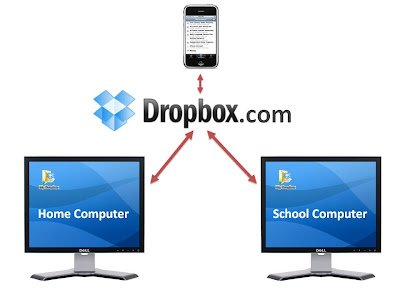
Dropbox is FREE software that syncs your files online and across your computers. So, you can work on a file on your home computer, put it in your dropbox, and then open it on your school computer the next day (and vice versa)! No emailing! No flash drives!

How does it work?
  1. Sign up for a Dropbox account at their website.
  2. Download Dropbox onto your home and school computers.

Once installed, you'll see a "My Dropbox" folder on your computer's desktop. Anything you place in that folder will be instantly synced to your online account AND to any of your other computers with Dropbox.


Anything else I should know?

  • Dropbox's free account provides 2GB of storage--more than enough for your documents and presentations.
  • There are other free filesharing/file storage sites out there. Dropbox is unique (and, in my opinion--better) because of the downloadable desktop folder that works like any other folder on your computer. With Dropbox, there is no uploading or downloading to a website. It's fast and easy.
  • If you're ever at a computer that is not yours and doesn't have Dropbox installed, just go to their website and login to your account. All of your files will be available.
  • If you open a file from your Dropbox, modify it, and save the changes, it will automatically sync those changes to your other dropboxes (online and on other computers). No more having multiple versions of the same file!
  • Your Dropbox will come with a "public" folder. Any files that you place in it will be assigned a URL that can be emailed for sharing.
  • Have an iPhone? Download the Dropbox App and sync your files to your iPhone!

Give Dropbox a try! You'll love it!

Good Luck!

Chris

Wednesday, June 3, 2009

Siftables: Hands-On Technology of the Future

Every once in a while, as I explore the Internet for the next great tech tool, I come across something amazing, something that blows my mind, something that is leaps and bounds ahead of everything else. A few days ago, I followed a link from one of the people that I follow on Twitter and discovered Siftables.


What is it?
Siftables are independent, wireless digital blocks that can communicate with each other. David Merrill, an MIT doctoral student and one of the developers of Siftables, was challenged with coming up with a way to make technology more "physical". He believes that people are skilled at using their hands to sift and sort through items to develop higher level thinking skills, but most technology devices don't lend themselves to that type of interaction. Siftables can be manipulated to play videos, spell words, solve math problems, create music, tell stories, and more. Watch this video of David presenting Siftables to a group in California.

The applications for education are obvious. Once Siftables are realeased and are available for purchase (hopefully they'll be affordable for schools!), they will change the way that we teach and the way that our students learn...again. I think that the thing that makes Siftables so unique and desirable is that they add a new layer to technology integration: making it hands-on. There are so many incredible websites and tools out there, but few of them allow users to physically interact (Those that do are incredibally popular--the Nintendo Wii--or expensive). I can't wait to try out Siftables with a group of students!

I know that there isn't really anything that you can take from this post and use with your students right now, but I thought that you might enjoy seeing (what I think is) something awesome.

Start planning now...how would you use Siftables with your students?

Chris

Monday, February 2, 2009

Quickly Zoom Into Any Screen on Your Computer

Many of you probably remember David Warlick, the speaker who visited our campus last May to talk about 21st Century education. While he had many things to say about the new ways that students learn, one of the things that intrigued a lot of us was his ability to zoom in and out of certain portions of his screen. Many people have asked me how he was able to do that, and the simple reason is because he was using a Mac Computer (I believe it's a built-in Apple feature).


Other than looking very cool, I thought that a feature like this would benefit Queensbury teachers because of the plasma monitors that are in every classroom. Sometimes you want to use them to show your students something, but it's a little tricky for them to make out the detail on the webpage or in the document. So, I set out to find a solution...


That's when I came across ZoomIt. It's a free, downloadable program that you can install on your classroom computer in minutes.


Here are a few screenshots so that you can see what the program does:


It allows you to zoom into the screen:


It allows you to draw on any screen:


To install ZoomIt, follow the steps in this video that I made. It's not that tricky, although you might want to watch it twice before you try--just to make sure it makes sense.


If you're still stuck, send me an e-mail and I'll get it set up for you.


Good Luck!


Chris